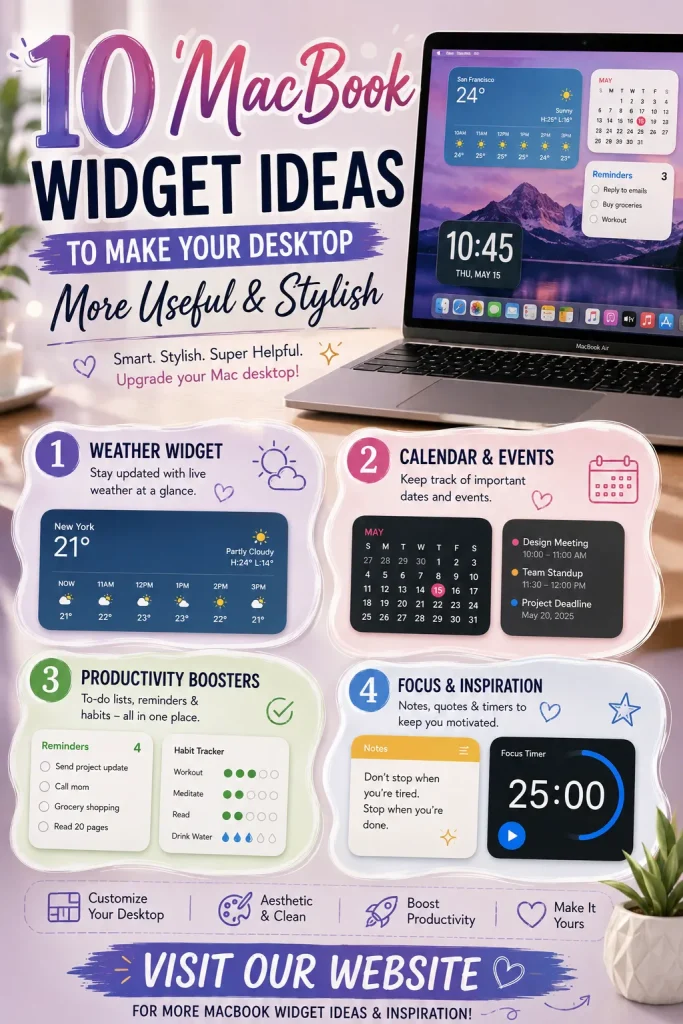
Make your MacBook desktop more useful and stylish with these 10 widget ideas. Discover helpful widgets for weather, calendar, reminders, productivity, notes, and more.
MacBook widget ideas, MacBook widgets, Mac desktop widgets, aesthetic MacBook widgets, useful MacBook widgets, MacBook desktop ideas, Mac productivity widgets, Mac desktop organization
Your MacBook desktop doesn’t have to be a plain space filled with files and folders. With the right widgets, you can turn your desktop into a convenient information hub that helps you stay organized, productive, and on top of your daily routine.
Widgets can provide quick access to information without requiring you to open multiple apps. Whether you want to check the weather, see your upcoming schedule, keep track of reminders, or simply create a more aesthetic desktop, there are plenty of ways to customize your setup.
Apple’s newer versions of macOS allow users to place widgets directly on the desktop and customize their appearance. You can also use widgets from your iPhone in supported setups, giving you even more options.
If you’re looking for inspiration, here are 10 MacBook widget ideas that can make your desktop both functional and stylish.
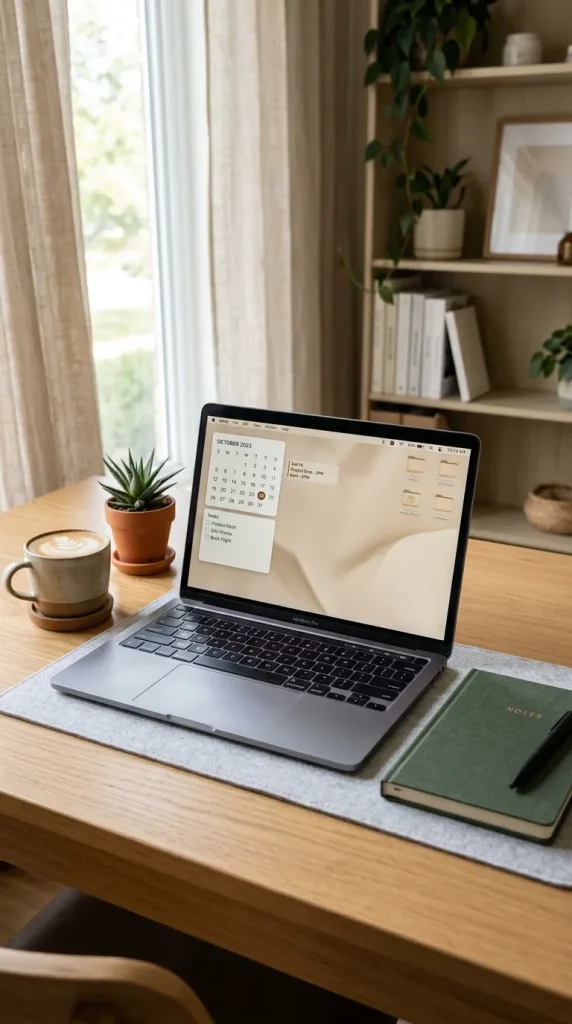
1. Calendar Widget
A calendar widget is one of the most useful additions to a MacBook desktop.
Instead of opening your calendar app every time you need to check a date, you can keep a calendar visible on your desktop.
Use It For
- Checking dates
- Remembering appointments
- Planning assignments
- Tracking important events
- Organizing your week
Styling Tip
Choose a compact calendar widget if you prefer a clean and minimalist desktop.
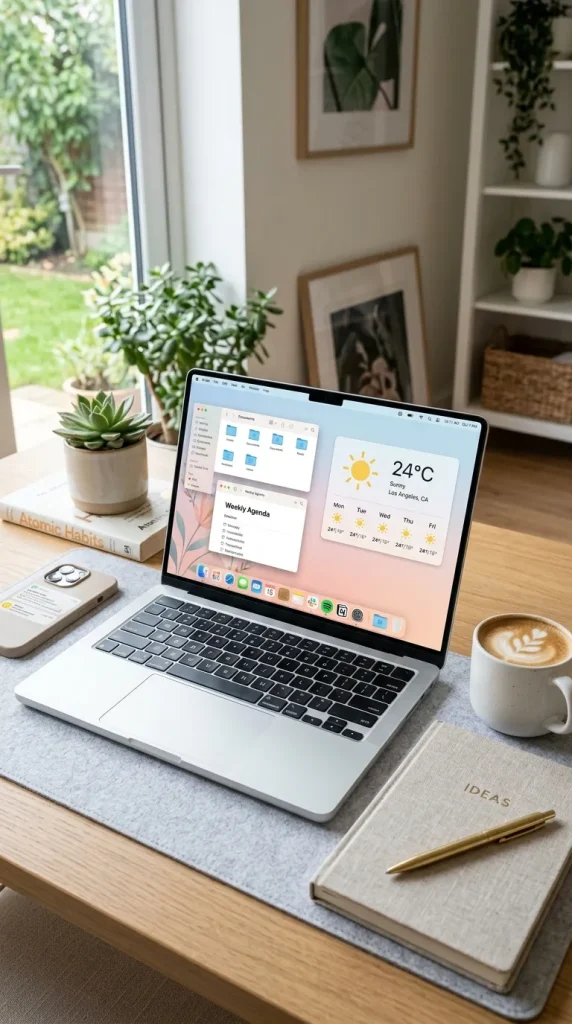
2. Weather Widget
A weather widget gives you quick access to current conditions and upcoming weather information.
It’s especially useful when you’re getting ready for school, work, travel, or outdoor activities.
Why You’ll Love It
You can quickly check:
- Temperature
- Weather conditions
- Rain forecasts
- Daily forecast
- Upcoming weather changes
Styling Tip
Place the weather widget near your calendar so you can check your schedule and the forecast at the same time.
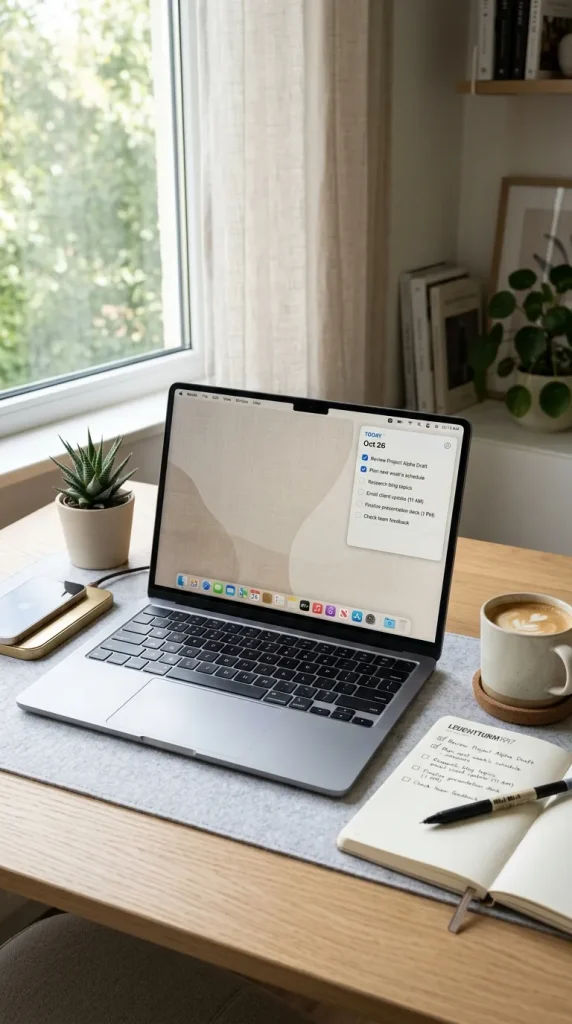
3. Reminders Widget
If you often forget small tasks, a reminders widget can be extremely helpful.
Keep your most important tasks visible directly on your desktop.
Create Lists For
- School assignments
- Work tasks
- Shopping
- Personal errands
- Daily goals
Styling Tip
Avoid displaying too many tasks at once. Keep the widget focused on your most important reminders.
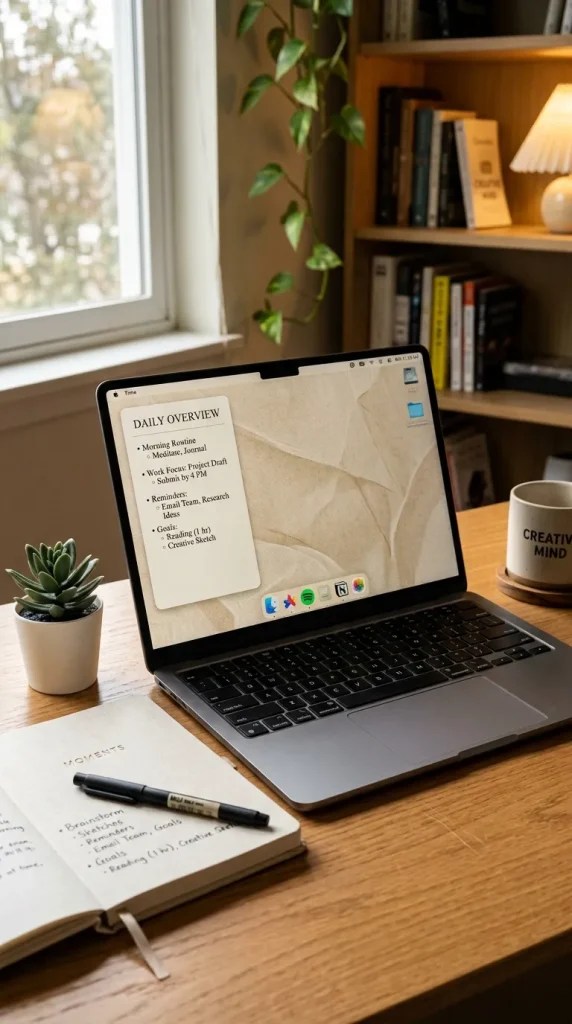
4. Notes Widget
A notes widget can be useful for keeping small pieces of information close at hand.
You can use it for quick ideas, important information, study notes, or daily thoughts.
Try It For
- Quick ideas
- Short notes
- Study reminders
- Content ideas
- Daily goals
Styling Tip
Use a short note rather than filling the widget with paragraphs of text.
5. Clock Widget
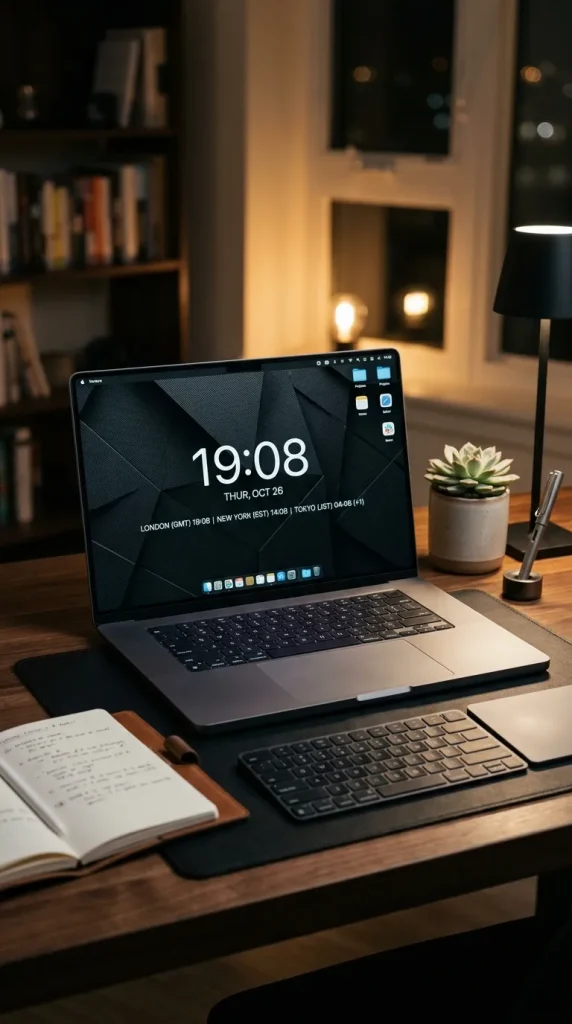
A clock widget is simple but surprisingly useful.
If you work with people in different time zones or frequently manage your schedule, having multiple clocks can make your desktop more practical.
Try
- Local time
- New York time
- London time
- Tokyo time
- Another important time zone
Styling Tip
Use a simple clock design to maintain a clean desktop aesthetic.
6. Battery Widget
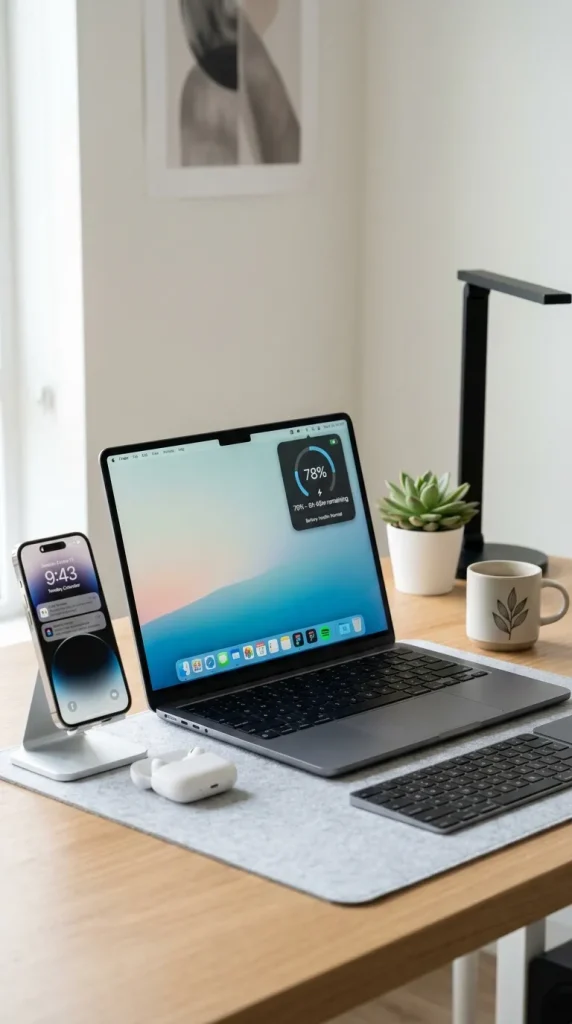
If you use multiple Apple devices, a battery widget can help you keep an eye on their battery levels.
Depending on your setup and available widget support, you may be able to monitor connected Apple devices from one convenient location.
Useful For
- MacBook battery
- iPhone
- AirPods
- Other supported devices
Styling Tip
Place it near the corner of your desktop so it remains visible without distracting from your workspace.
7. Screen Time Widget
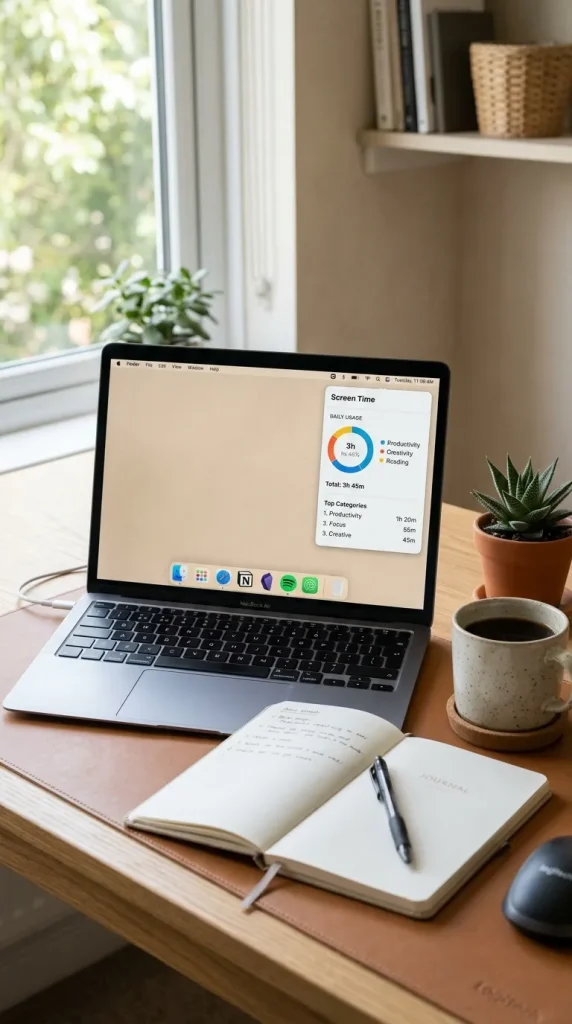
Want to understand how much time you’re spending on your devices?
A Screen Time widget can help you keep track of your digital habits where supported by your Mac setup.
Use It To
- Monitor daily usage
- Identify time-consuming apps
- Build healthier digital habits
- Track productivity patterns
Styling Tip
Keep the widget small so your desktop doesn’t feel cluttered.
8. Music Widget
If you enjoy listening to music while studying, working, or relaxing, a music widget can make your desktop more enjoyable.
Depending on your apps and macOS setup, you can use available music controls to quickly access playback.
Try It With
- Study playlists
- Focus music
- Lo-fi
- Podcasts
- Favorite albums
Styling Tip
Pair your music widget with a simple wallpaper and minimal desktop icons for a clean aesthetic.

9. Productivity Widget
A productivity-focused widget can turn your desktop into a mini command center.
You can use available widgets for tasks, reminders, calendars, or other productivity tools to keep your priorities visible.
Create a Simple Setup
Place:
Calendar → Reminders → Notes
together so your most important information is easy to access.
Styling Tip
Don’t overload your desktop with widgets. Choose only the ones you actually use.

10. Aesthetic Photo Widget
Not every widget has to be purely functional.
A photo widget can make your MacBook desktop feel more personal and visually appealing.
Choose
- Travel photos
- Nature images
- Family memories
- Inspirational quotes
- Minimalist photography
- Favorite artwork
Styling Tip
Choose images that complement your wallpaper instead of creating too much visual clutter.
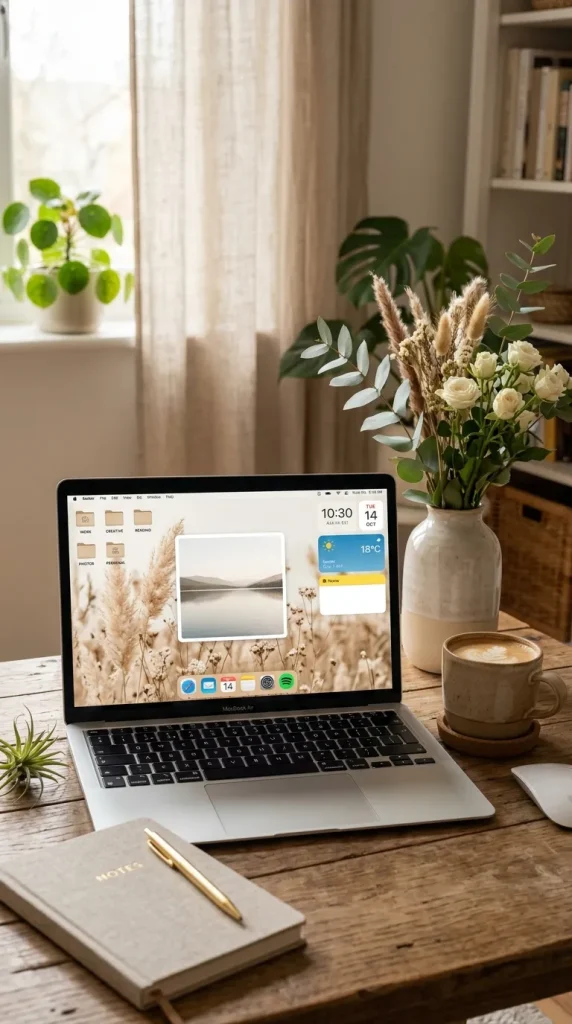
How to Add Widgets to Your MacBook Desktop
The exact options can vary depending on your macOS version, but on supported versions you can generally add widgets by entering the desktop editing/customization interface and selecting the available widget options.
You can usually choose from different widget sizes and arrange them according to your preferences.
For a cleaner setup, start with just two or three widgets and add more only if they genuinely improve your workflow.
How to Create an Aesthetic MacBook Widget Setup
Widgets can easily make a desktop look cluttered if you add too many. The goal is to find a balance between functionality and appearance.
Choose a Color Theme
Try a consistent aesthetic such as:
- Beige and cream
- Black and gray
- Soft pink
- Sage green
- Blue and white
- Brown and neutral
Keep Your Wallpaper Simple
A simple wallpaper gives your widgets and desktop icons room to breathe.
Group Similar Widgets
Place your calendar, reminders, and notes near each other to create a functional productivity area.
Don’t Overdo It
Three useful widgets are often better than ten distracting ones.
Match Your Icons
If you’re going for an aesthetic desktop, keep your folders and icons visually organized as well.
Best MacBook Widgets for Different Needs
For Students
Try:
- Calendar
- Reminders
- Notes
- Weather
For Productivity
Try:
- Calendar
- Reminders
- Clock
- Productivity tools
For Aesthetic Lovers
Try:
- Photo
- Music
- Weather
- Minimal calendar
For Travelers
Try:
- Weather
- Clock
- Calendar
- Battery
MacBook Widget Layout Ideas
Minimalist Layout
Keep just a calendar and weather widget in one corner.
Study Layout
Use calendar, reminders, notes, and a clock.
Cozy Layout
Combine a photo widget, music widget, and simple calendar.
Productivity Layout
Place reminders, calendar, and other task-focused widgets together.
Clean Layout
Use one large widget with plenty of empty desktop space around it.
Final Thoughts
The right widgets can turn your MacBook desktop into a space that is both useful and visually appealing. Instead of opening different apps throughout the day, you can keep important information such as your schedule, reminders, weather, and notes right where you can see them.
From calendar and weather widgets to reminders, clocks, battery information, music, productivity tools, and aesthetic photos, these 10 MacBook widget ideas offer plenty of ways to personalize your desktop.
The key is to choose widgets that fit your daily routine and arrange them in a way that keeps your desktop clean rather than cluttered. A simple, organized setup can make your MacBook feel more personal while helping you stay productive throughout the day.